
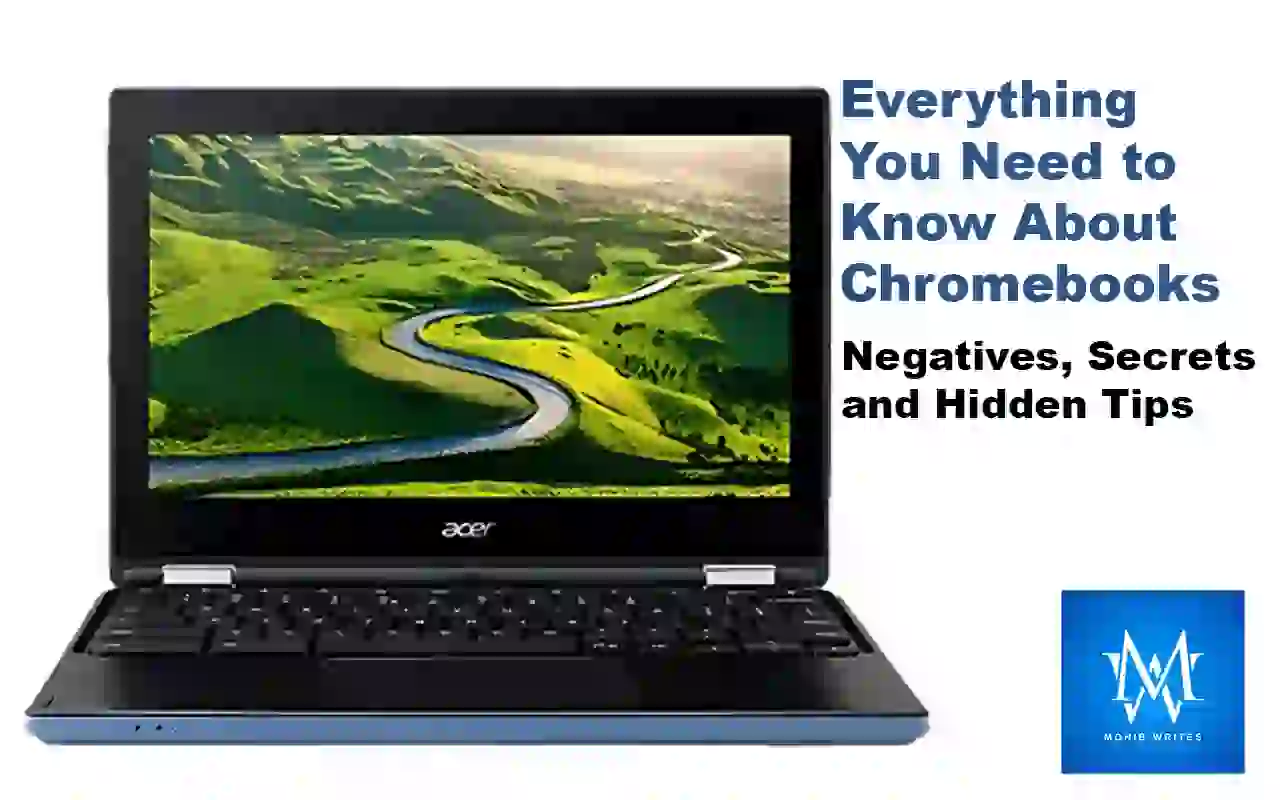
Chromebooks have become a popular choice for many—especially in schools and casual work environments. They’re known for their simplicity, speed, and integration with Google services. However, while many users love their lightweight design and ease of use, Chromebooks also have some drawbacks and unique quirks that might surprise you. In this blog post, we’re going to answer some of the most frequently asked questions about Chromebooks. We’ll dive into their negatives, secrets, and hidden shortcuts, as well as why schools often choose them over traditional laptops. Whether you’re a student, teacher, or tech enthusiast, this post will help you understand everything you need to know about Chromebooks.
1. What Are the Negatives About Chromebooks?
Chromebooks are celebrated for their speed and simplicity, but they aren’t perfect. Here are some of the main negatives that you might consider:
Limited Offline Capabilities
Most Chromebooks are built with cloud computing in mind, meaning you need an internet connection to take full advantage of their features. Although Google has improved offline functionalities in apps like Google Docs and Gmail, many users still find that without a good Wi-Fi connection, their Chromebook feels very limited.
Less Software Flexibility
Chromebooks run on Chrome OS, which means they primarily support web-based applications and Android apps. This limits the use of traditional desktop software—especially if you need specialized programs for work or gaming. If you’re used to the flexibility of a full desktop operating system like Windows or macOS, this can be a downside.
Hardware Limitations
Since Chromebooks are generally designed for light use, they often come with less powerful hardware compared to traditional laptops. This can mean slower performance with demanding tasks, less multitasking capability, and fewer ports for connecting peripherals.
Storage Limitations
Chromebooks typically come with lower internal storage since they assume you’ll be using cloud storage like Google Drive. For users who prefer to store large files locally or work with large media files, this can be a significant drawback.
Security Risks with Developer Mode
While Chromebooks are secure by default, enabling developer mode can expose the system to potential security vulnerabilities. Developer mode is useful for tinkering and running Linux apps, but it can lower the overall security if not handled carefully.
Updates and Compatibility
Chrome OS frequently receives updates, which are great for security and new features but can sometimes cause compatibility issues with older apps or devices. Also, not all hardware accessories are compatible with Chrome OS, which might leave some users frustrated.
Despite these drawbacks, Chromebooks are continually improving. They are a great option if you work primarily online and use Google’s ecosystem, but it’s important to know what you might be giving up in the process.
2. What Are Some Secrets in a Chromebook?
Chromebooks might seem simple at first glance, but they’re packed with hidden features and shortcuts that can make your experience smoother and more productive. Here are some secrets that might surprise you:
Hidden Keyboard Shortcuts
Chromebooks have many built-in keyboard shortcuts that can help you navigate faster. For example, using the “Search” key (sometimes called the Launcher key) combined with other keys can quickly open apps, switch between tabs, or control settings.
Developer Mode
One of the more hidden aspects of Chromebooks is the Developer Mode. This mode unlocks a number of additional features such as installing Linux apps, accessing system files, and even customizing the operating system in ways that aren’t possible in the standard mode. However, keep in mind that enabling Developer Mode might void some warranties or lower your device’s security.
Chrome Extensions and Apps
Many Chromebooks are highly customizable through Chrome extensions. While the Chrome Web Store is well-known, there are also hidden or lesser-known extensions that can enhance your productivity, like virtual desktops, task managers, and even system monitors.
The “Guest Mode”
Chromebooks come with a built-in Guest Mode, which allows someone else to use your Chromebook without accessing your personal files or settings. This is great for lending your device temporarily without any worry.
Secret System Diagnostics
Did you know that Chromebooks have built-in system diagnostic tools? You can access performance stats, storage details, and even battery health information by typing certain commands in the system settings or using hidden URLs like “chrome://system.”
These hidden features make Chromebooks versatile tools that can be adapted to many different user needs, even if you only need the basics.
3. What to Avoid With a Chromebook?
While Chromebooks are user-friendly, there are certain pitfalls and practices you should avoid to ensure your device remains secure and performs well.
Avoid Overloading with Apps
Since Chromebooks rely on the cloud and web apps, installing too many extensions or apps can slow down the system. Try to keep only the apps you really use and avoid adding too many unnecessary extensions that might hog system resources.
Don’t Neglect Updates
Chrome OS updates are critical for security and performance improvements. Avoid turning off automatic updates or delaying them, as outdated software can leave you vulnerable to security threats.
Avoid Enabling Developer Mode Unless Necessary
While Developer Mode can be exciting, it’s best to avoid enabling it unless you’re comfortable with the potential risks. Developer Mode can open up your system to security vulnerabilities and may void your warranty.
Don’t Use Untrusted Sources
Be careful when installing apps or extensions from outside the official Chrome Web Store. Untrusted sources might introduce malware or cause compatibility issues with your Chromebook.
Avoid Heavy Offline Workloads
If you rely on your Chromebook for heavy offline tasks, be aware that its design is optimized for cloud use. If you often work in areas with poor internet connectivity, consider alternative solutions or be prepared for occasional limitations.
By keeping these precautions in mind, you can ensure that your Chromebook remains efficient, secure, and reliable for your everyday tasks.
4. Why Do Schools Use Chromebooks and Not Laptops?
Schools around the world have increasingly turned to Chromebooks over traditional laptops for several reasons. Here are some key factors:
Cost-Effectiveness
Chromebooks are generally less expensive than many traditional laptops, making them a cost-effective solution for schools that need to equip many students. The lower cost also means less worry about damage or theft in a school environment.
Easy Management
With Chrome OS being cloud-based, IT administrators can easily manage, update, and secure a fleet of Chromebooks remotely. Tools like the Google Admin Console make it simple to enforce policies, install updates, and monitor usage.
Speed and Simplicity
Chromebooks are designed to boot up quickly and run smoothly with minimal fuss. This is especially important in schools where class time is precious. Students can start working almost instantly without dealing with long startup times or complicated software installations.
Integration with Google’s Ecosystem
Google Classroom, Google Drive, and other Google services work seamlessly with Chromebooks. This integration makes it easier for teachers to assign, collect, and grade assignments, and for students to collaborate on projects online.
Enhanced Security
Chrome OS is built with security in mind. Regular updates and built-in virus protection mean that Chromebooks are less prone to malware and other security threats compared to traditional operating systems. This is crucial in a school setting where protecting student data is a top priority.
Lightweight and Durable
Many Chromebooks are designed to be lightweight and durable—ideal for students who are always on the go. They often feature rugged designs to withstand the bumps and knocks of daily school life.
Overall, the combination of low cost, ease of management, fast boot times, and robust security makes Chromebooks an appealing choice for educational institutions.
5. What Is the Downfall of a Chromebook?
Even though Chromebooks have their advantages, they also have some significant downfalls that might affect your decision to use one:
Limited Software Options
One major downfall is the limited range of software available. Unlike Windows or macOS, Chrome OS supports mainly web-based and Android apps. This limitation can be a problem if you need specialized software for tasks like advanced video editing, professional graphic design, or certain gaming applications.
Dependence on Internet Connectivity
Chromebooks rely heavily on an internet connection. While there are offline capabilities in some Google apps, many features require being online. If you often find yourself in areas with poor or no internet access, a Chromebook might leave you stranded.
Hardware Constraints
Many Chromebooks are built with minimal hardware to keep costs down. This means less powerful processors, lower amounts of RAM, and limited storage space. These constraints can lead to performance issues if you try to run too many apps at once or if you’re tackling more demanding tasks.
Compatibility Issues
Because Chrome OS is different from traditional operating systems, some peripherals and software may not be compatible with Chromebooks. This includes certain printers, scanners, or older external devices that don’t have Chrome OS support.
Customization Limitations
For tech enthusiasts who love to customize every aspect of their computer, Chromebooks can feel a bit restrictive. The operating system is designed to be simple and streamlined, which means you don’t have as much freedom to tweak settings or install custom applications as you would on other platforms.
These downfalls mean that while Chromebooks are fantastic for specific tasks, they might not be the best fit for everyone—especially those who need a more versatile or powerful computing experience.
6. Why Are Chromebooks So Trashy?
The phrase “Chromebooks are trashy” often pops up in online forums and social media. Let’s unpack why some users might think this way and what the reality is.
Perceptions Based on Limited Use
Many of the criticisms stem from users comparing Chromebooks directly to high-end laptops or gaming machines. Chromebooks are designed to be simple, affordable, and efficient for basic tasks. When expectations are set too high—expecting them to handle tasks they’re not designed for—they can seem underwhelming.
Build Quality and Durability
Some lower-end Chromebook models are built with cost in mind, which can sometimes result in less durable construction. Cheap plastics and flimsy hinges might give the impression that Chromebooks are “trashy.” However, there are many higher-end models available that focus on durability and performance.
Software Limitations
Because Chromebooks run on a cloud-based operating system, users who are not accustomed to web apps might feel limited in what they can do. This can lead to frustration and the perception that Chromebooks are inferior. It’s important to note that many of these limitations are intentional, as they help keep the system simple and secure.
Misunderstanding the Purpose
A lot of the negative opinions come from misunderstandings about what Chromebooks are built for. They are not meant to replace powerful desktop machines or gaming laptops; rather, they are designed for everyday tasks like browsing, email, streaming, and using Google apps. When used within their intended scope, Chromebooks perform very well.
In short, calling Chromebooks “trashy” is often a matter of perspective. If you need a lightweight, affordable computer for basic tasks, a Chromebook can be a great option. But if you’re looking for a powerhouse machine, you might be disappointed.
7. What Does Ctrl+Alt+Z Do on a Chromebook?
One of the most frequently asked questions about Chromebook shortcuts is: What does Ctrl+Alt+Z do?
Accessibility Shortcut: ChromeVox
When you press Ctrl+Alt+Z on a Chromebook, you’re toggling the built-in screen reader known as ChromeVox. This feature is designed for visually impaired users, providing audio feedback about what’s happening on your screen. It can read text aloud and help navigate the interface without needing to see the screen.
When to Use ChromeVox
Even if you’re not visually impaired, there are moments when having a screen reader can be helpful—for example, if you’re testing accessibility features for a website or app. However, if you activate it by accident, it might start reading everything aloud, which can be a bit overwhelming. Simply press Ctrl+Alt+Z again to turn it off.
Knowing this shortcut can be especially useful if you’re helping someone set up their Chromebook or if you’re curious about how accessibility features work in modern operating systems.
8. What Is Unique About Chromebooks?
Chromebooks stand out from other computing devices in several key ways. Here are some of the most unique aspects:
Cloud-First Design
Chromebooks are built around the idea of using cloud storage. Most of your files, apps, and settings are stored online. This design means you can access your work from any device with an internet connection, which is a huge plus for users who are always on the move.
Simplified Operating System: Chrome OS
Unlike other operating systems that can be cluttered with unnecessary features, Chrome OS is minimalistic and streamlined. It boots up quickly, is easy to navigate, and focuses on the essentials—web browsing, apps, and basic productivity tasks.
Security Focus
Chromebooks are designed with security in mind. Regular updates, sandboxing of web pages and apps, and built-in virus protection mean that Chromebooks are less vulnerable to many common security threats. This makes them an ideal choice for educational settings and anyone concerned about online security.
Seamless Integration with Google Services
Since Chrome OS is developed by Google, it integrates seamlessly with services like Google Drive, Google Docs, and Gmail. This integration makes it easy for users to sync their data across devices and work collaboratively with others in real time.
Lightweight and Fast
Due to their design and efficient operating system, Chromebooks typically boot up in seconds and can handle everyday tasks with ease. They’re perfect for students, professionals, or anyone who needs a quick, responsive device.
Versatility with Android and Linux Apps
Modern Chromebooks can run both Android apps and Linux applications, broadening the range of software you can use. This capability means that even if the device is optimized for the web, it can handle more traditional applications when needed.
These unique features make Chromebooks a refreshing alternative to traditional laptops, especially for users who value simplicity, speed, and cloud connectivity.
9. Why Is Chromebook Not Good for Students?
While Chromebooks are widely used in schools, some critics argue that they might not be ideal for all students. Here’s why:
Software Limitations for Specialized Tasks
Many educational tasks require specific software that may not run on Chrome OS. For students studying graphic design, video editing, or advanced programming, the limited software options can be a real hindrance. Traditional laptops often support a broader range of software, which might be necessary for certain curriculums.
Reliance on Internet Connectivity
For students in areas with unreliable internet access, Chromebooks can be problematic. While offline modes exist for some apps, the full functionality of a Chromebook is best experienced online. This can be a major drawback in regions where internet speed or reliability is a concern.
File Management Challenges
Chrome OS handles file management differently than Windows or macOS. This can be confusing for students who are used to traditional file systems. Although Google Drive integration helps, the learning curve might be steep for some younger users or those new to the platform.
Limited Customization and Flexibility
Students who like to tweak their device settings or install specialized applications might find Chromebooks too restrictive. The closed nature of Chrome OS means there’s less room for customization, which can be frustrating if you’re used to a more open system.
Hardware Limitations
Many Chromebooks come with modest hardware—enough for basic tasks but not for intensive multitasking or running heavy applications. For students who need a device that can handle more demanding programs, this can be a significant limitation.
It’s important to note, though, that for many students, especially those primarily using web-based tools and Google’s suite of educational apps, Chromebooks can be a perfectly adequate—and even ideal—choice. The key is understanding the needs of the student and the curriculum.
10. Why Are Chromebooks So Laggy?
If you’ve experienced a Chromebook that seems to lag, you’re not alone. Here are some common reasons for this issue:
Overloaded with Extensions and Apps
One of the most common causes of lag on a Chromebook is having too many extensions or web apps running at the same time. Each additional extension can consume memory and processing power, slowing down the system.
Limited Hardware Resources
As mentioned earlier, many Chromebooks come with modest hardware specifications. If you’re trying to run multiple demanding web apps or using several tabs simultaneously, the limited RAM and processor speed can lead to lag.
Software Bugs or Outdated Updates
Sometimes, lag can be caused by software bugs or issues with recent updates. While Chrome OS is designed to be lightweight, occasional glitches can occur. Keeping your system updated is important, but sometimes an update might temporarily introduce performance issues until they’re fixed in a subsequent patch.
Too Many Open Tabs
Chromebooks, like any computer, can struggle when too many browser tabs are open at once. Each tab consumes resources, and if you’re a heavy multitasker, this might slow down your device significantly.
Background Processes
Sometimes, background processes such as system updates or sync tasks with Google Drive can also slow things down temporarily. While these are usually optimized to run without interruption, they can sometimes affect performance, especially on lower-end models.
Understanding these potential causes can help you take steps to reduce lag—such as limiting open tabs, disabling unnecessary extensions, and ensuring your Chromebook is running the latest updates.
11. What Can Damage a Chromebook?
While Chromebooks are generally built to be sturdy and long-lasting, there are several factors that can damage them. Here’s what you need to watch out for:
Physical Damage
Chromebooks, especially those designed for students, can be prone to physical damage if dropped or mishandled. Cracked screens, broken hinges, and dented bodies are all possible if the device isn’t handled carefully.
Liquid Spills
Like any electronic device, Chromebooks are vulnerable to water and other liquid spills. Even if your Chromebook has a somewhat rugged design, exposure to liquids can cause internal damage to the circuitry.
Overheating
Extended use, especially in environments with high temperatures or poor ventilation, can lead to overheating. Overheating can damage the battery and other internal components, reducing the lifespan of your Chromebook.
Excessive Dust and Dirt
Accumulation of dust in the vents or keyboard can interfere with proper cooling. Regular cleaning and care can help prevent dust build-up, which might otherwise cause overheating or malfunctioning hardware components.
Improper Handling of Accessories
Using incompatible chargers or peripherals can also damage your Chromebook. Always use recommended accessories and avoid forcing connections that aren’t designed for your device.
Taking good care of your Chromebook by protecting it from physical harm, keeping it clean, and using compatible accessories can help extend its life and maintain performance.
12. What Are Some Hidden Shortcuts on Chromebook?
Chromebooks are full of hidden shortcuts that make navigation and productivity a breeze. Here are some lesser-known shortcuts that might come in handy:
Screen and Window Management
- Ctrl + Window Switcher Key (or F5): Takes a screenshot of your entire screen.
- Ctrl + Shift + Window Switcher Key: Takes a partial screenshot (allows you to select an area of the screen).
- Alt + [ or Alt + ]: Quickly snaps the current window to the left or right side of the screen for side-by-side view.
Accessibility Shortcuts
- Ctrl + Alt + Z: Toggles the ChromeVox screen reader on and off.
- Ctrl + Alt + Brightness Up/Down: Adjusts display brightness quickly.
Navigation Shortcuts
- Search + L: Locks your Chromebook.
- Search + Esc: Opens the Task Manager to see which apps are using the most resources.
- Ctrl + Tab or Ctrl + Shift + Tab: Allows you to quickly switch between open tabs.
These shortcuts can significantly speed up your workflow, making everyday tasks on your Chromebook smoother and more efficient.
13. How Do I Take a Screenshot on a Chromebook?
Taking a screenshot on a Chromebook is really simple, and there are a couple of ways to do it depending on what you need.
Full-Screen Screenshot
Press Ctrl + the “Show Windows” key (which looks like a rectangle with two lines on the right) to capture the entire screen.
Partial Screenshot
Press Ctrl + Shift + the “Show Windows” key. Your cursor will change, allowing you to select the area of the screen you want to capture.
After taking the screenshot, you’ll find it saved in your Downloads folder or the designated folder for screenshots.
14. Do Schools Monitor Chromebooks?
Yes, many schools do monitor Chromebooks, and they do so for several important reasons:
Keeping Students Safe
Schools often install monitoring software to ensure that students are using the devices for educational purposes and to protect them from inappropriate content. This software can track browsing activity, app usage, and even the time spent on different tasks.
Managing Device Usage
By monitoring Chromebooks, school IT administrators can quickly spot issues like unauthorized installations or potential security risks. This helps them maintain a safe and productive digital environment for students.
Ensuring Compliance with Policies
Monitoring helps schools enforce their usage policies. For example, if a school has a rule against accessing certain websites or using the device for non-educational purposes during class, monitoring can help ensure these rules are followed.
It’s important to remember that while monitoring might feel intrusive, it’s primarily designed to protect students and ensure that the technology is used responsibly.
15. Are There Disadvantages to a Chromebook?
Many of the negatives we’ve already discussed boil down to the disadvantages of a Chromebook. In summary, here are some of the key disadvantages:
Limited Application Ecosystem
Chromebooks mainly run web-based apps and Android applications, which can be limiting if you need access to specialized desktop software.
Heavy Dependence on Internet Connectivity
Without a reliable internet connection, many of a Chromebook’s functions become restricted. Although offline modes exist for some apps, the full experience requires being online.
Hardware Limitations
Many Chromebooks are built with modest hardware. This can lead to performance issues, especially when multitasking or running heavy web applications.
Reduced Customization
For users who enjoy tweaking their device settings or installing non-approved apps, Chrome OS can feel restrictive. The system’s simplicity is a double-edged sword: it’s user-friendly but not very flexible for power users.
Storage Concerns
Since Chromebooks are designed to work with cloud storage, they often come with limited internal storage. If you’re someone who prefers storing files locally, this can be a disadvantage.
Wrapping It All Up
In today’s world of rapidly evolving technology, Chromebooks have carved out their niche as affordable, secure, and easy-to-manage devices that work particularly well for users whose lives are intertwined with the cloud. They’re especially popular in schools because of their simplicity, quick boot times, and ease of maintenance. However, as we’ve explored in this post, there are several drawbacks—from limited offline capabilities and modest hardware to software restrictions and potential performance issues.
The Bigger Picture
While many of these negatives might be a deal-breaker for power users or those needing specialized software, for everyday browsing, schoolwork, and light productivity tasks, Chromebooks can be a fantastic choice. The hidden shortcuts and unique features of Chrome OS can make daily operations smoother, and with a little bit of care—like avoiding too many heavy extensions or always keeping your device updated—most of the potential pitfalls can be managed.
Who Should Consider a Chromebook?
If you:
- Spend most of your time online,
- Use Google services extensively,
- Need a device that’s easy to manage and secure,
- Are on a tight budget or need a device for educational purposes,
then a Chromebook might be the ideal option for you. On the other hand, if you require heavy-duty software for tasks like video editing, high-end gaming, or specialized business applications, you might be better off with a traditional laptop running Windows or macOS.
Final Thoughts
It’s important to understand both the advantages and limitations of any technology before investing your time and money. Chromebooks excel at providing a simple, secure, and efficient experience for many everyday tasks, but they come with trade-offs that are crucial to consider. From the secret keyboard shortcuts and built-in accessibility features to the issues of limited offline functionality and hardware constraints, knowing these details can help you decide if a Chromebook meets your needs.
I hope this comprehensive guide has answered your questions and shed some light on the often-debated topic of Chromebooks. Whether you’re planning your next tech purchase, helping someone choose a device for school, or just curious about what makes Chromebooks tick, understanding these nuances can go a long way. Remember, no device is perfect—what matters most is how well it fits into your lifestyle and work habits.
Thank you for taking the time to read through this deep dive into Chromebooks. If you have any further questions or want to share your own experiences with Chromebooks, feel free to leave a comment below. Happy computing!