As of April 2026, Windows 11 new features 2026 are practical, not flashy: Microsoft’s February and March preview updates focus on smoother handoffs, faster troubleshooting, stronger sign-in, and better admin tools.
Microsoft is also rolling these changes out in phases, which matters more than the headline does. In simple words: two people on the same version can see different features on different days, because Microsoft says some items arrive through gradual rollout and others through normal rollout.
What Microsoft actually added
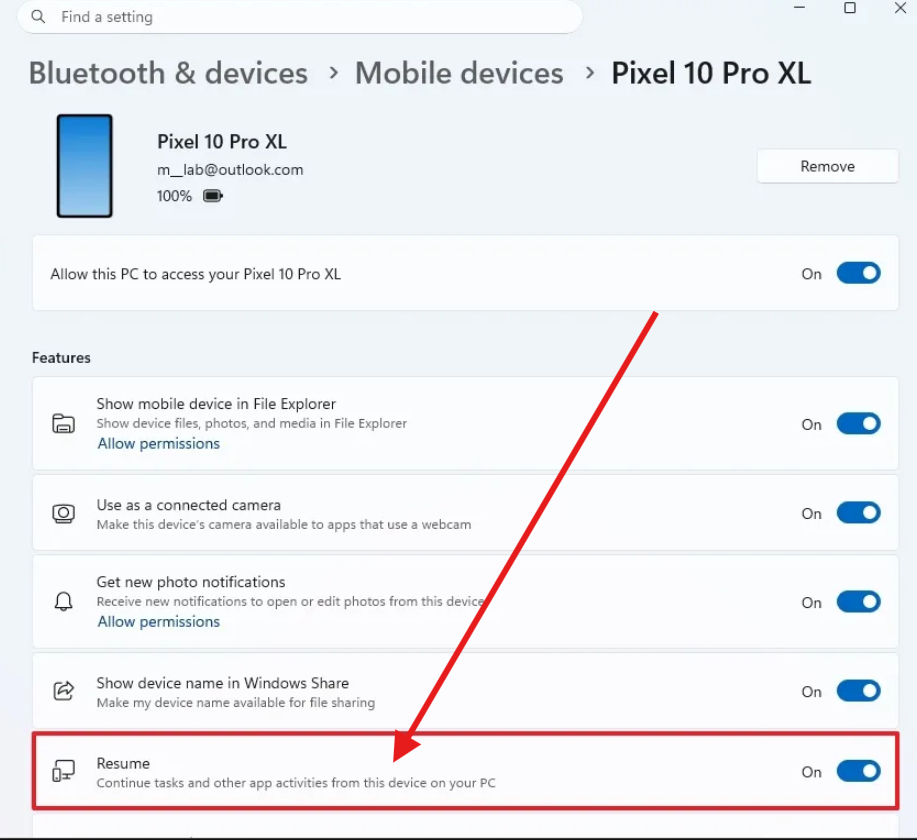
1) Cross-Device Resume finally makes the phone-to-PC jump useful
This is the feature most everyday users will notice first. Microsoft says Cross-Device Resume lets you continue Android activity on your PC, including Spotify playback, Word, Excel, PowerPoint, and browsing sessions. In the February 2026 update, Microsoft also extended support for some Android brands and online files opened in the Microsoft Copilot app.
That is the kind of feature that saves time without making a scene. You stop thinking, “Where did I leave off?” and just keep going.
2) Windows MIDI Services gets serious about pro workflows
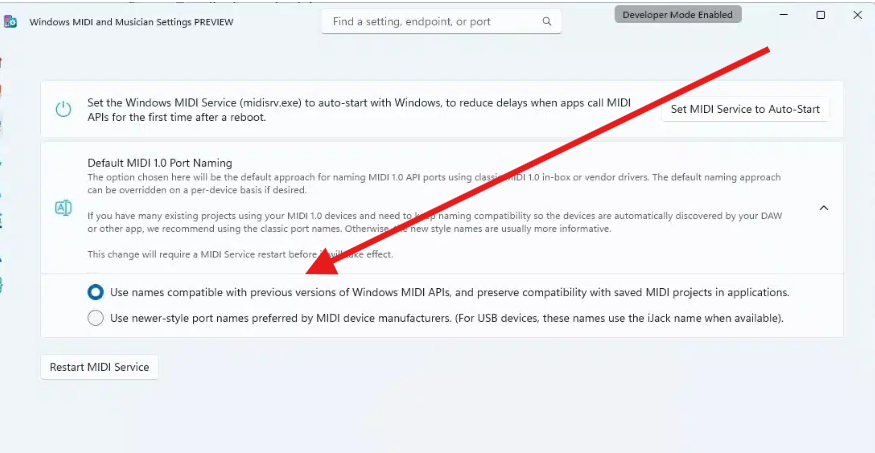
For musicians and developers, this is the big technical upgrade. Microsoft says the new MIDI stack improves support for MIDI 1.0 and MIDI 2.0, with built-in translation, shared ports across apps, custom port names, loopback, and app-to-app MIDI. Microsoft’s MIDI team also says the 2026 rollout is being phased in and is aimed at cleaning up real-world driver and app problems.
That matters because MIDI setups often get messy fast. Fewer driver hacks. Fewer port-name mysteries. Less time wasted before the music even starts.
3) Windows 11 now gives you a built-in network speed test
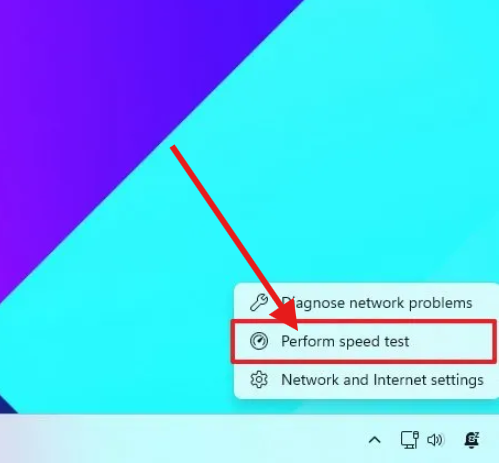
This one is small, but it is exactly the kind of small that saves support tickets. Microsoft says the speed test is available from the taskbar, Quick Settings, or the network icon, and it opens in the default browser to measure Ethernet, Wi-Fi, and cellular connections.
In a real help-desk workflow, this is gold. A user says, “My internet is slow.” Now the first check lives inside Windows, not in a separate tab nobody remembers.
4) Windows Hello now plays nicer with external fingerprint readers
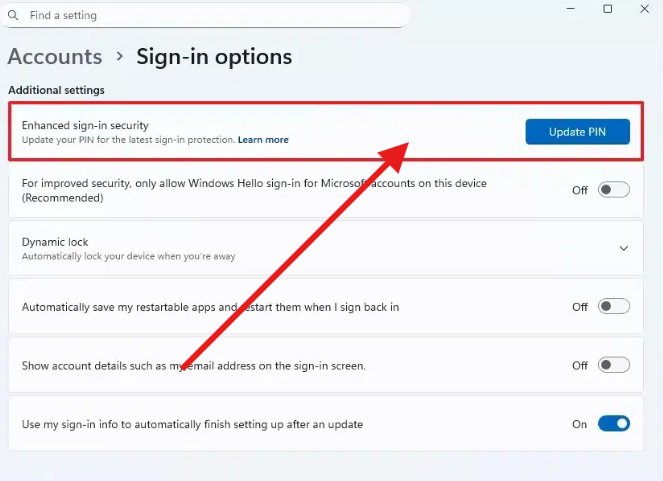
Microsoft expanded Windows Hello Enhanced Sign-in Security so it now supports peripheral fingerprint sensors, not just built-in ones. The company says this extends the more secure sign-in path to desktops and other Windows 11 PCs, including Copilot+ PCs.
That is a quiet but important change. Desktop users finally get a cleaner biometric option without having to rely on the laptop-style hardware that they do not have.
5) Settings is getting more useful at a glance
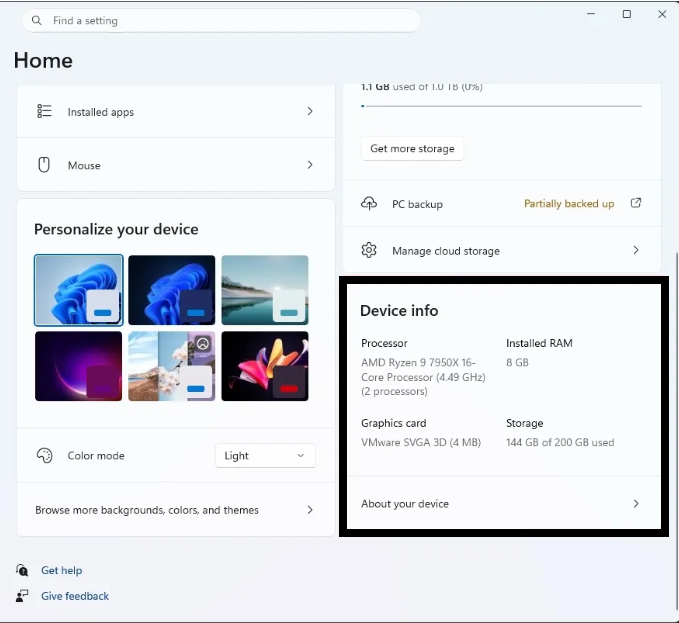
Microsoft also updated the About area in Settings so device details and related options sit in one place. In the same update wave, Microsoft added a Device Info card on the Settings home page that surfaces key hardware details more quickly.
This is one of those changes that sounds minor until you are trying to answer a simple question like, “What processor is on this machine again?”
6) Recovery and security are getting more automatic
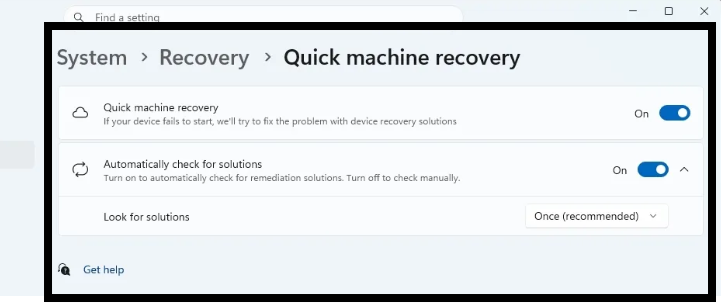
Quick Machine Recovery is now expanding to Windows 11 Pro devices, with Microsoft saying it turns on automatically for certain non-domain-joined Pro PCs and can help recover systems that hit startup problems. Microsoft also says Sysmon is now available natively as an optional Windows feature, off by default, and it logs system activity into Windows Event Log for threat detection and monitoring.
That is a serious win for IT teams. Less manual cleanup. Better visibility. More recovery before the user starts panic-refreshing their laptop.
7) Small polish items are adding up
Microsoft also added WebP wallpaper support and pan-and-tilt controls for supported cameras in Settings. In the camera docs, Microsoft already shows the Cameras page as the control center for enabling, disabling, and managing connected cameras, so the new controls fit the broader Settings direction pretty neatly.
Why these Windows 11 changes matter
Microsoft is leaning into workflow fixes, not just cosmetic tweaks. Cross-Device Resume reduces friction between phone and PC. The speed test and recovery tools reduce diagnosis time. Sysmon and stronger Hello support improve security and manageability. MIDI, camera controls, and WebP wallpaper support round out the experience for power users and creators.
That is smart product strategy. Not every update needs fireworks. Sometimes the best one is the one that quietly removes three annoying steps from your day.
Bottom line
Windows 11 new features 2026 are not a flashy reinvention. They are a cleaner, more practical version of Windows: better handoff, better troubleshooting, better sign-in, and better admin visibility. If you use Windows every day, these are the updates that make the system feel less like software and more like a tool that stays out of your way.
The real question is simple: what is the very first experiment you are going to run this week—Cross-Device Resume, the taskbar speed test, or Sysmon?
People Also Ask
The biggest practical changes are Cross-Device Resume, the built-in network speed test, native Sysmon, expanded Windows Hello fingerprint support, and better camera controls. Microsoft also added WebP wallpaper support.
It lets you continue work from your Android phone on your Windows 11 PC. Microsoft says it supports things like Spotify, Office files, and browsing sessions, depending on the app and device.
Yes. Microsoft says the speed test is available from the taskbar, Quick Settings, or the network icon, and it measures Ethernet, Wi-Fi, and cellular connections.
Yes, as an optional built-in feature. Microsoft says it is off by default and can be enabled from Optional features or through command-line setup. Sysmon logs system activity into Windows Event Log.
Yes. Microsoft says Windows Hello Enhanced Sign-in Security now supports peripheral fingerprint sensors, which extends secure sign-in beyond built-in sensors.
Yes. Microsoft added WebP desktop background support, so you can set a WebP image as your wallpaper from Settings or File Explorer.